
Running a business on your own means your tools never quite talk to each other. Email is in one place, the calendar in another, and there is a pile of things you keep meaning to look at. Anthropic’s Claude for Small Business plugin promises to pull that together.
I set it up myself in the Claude desktop app, with a real business and my real accounts. It took me between 10 and 15 minutes from the first line I typed to a finished welcome page, and Claude gave clear instructions at every stage. Below is every step, in order, so you can follow the same route with your own tools.
Step 1: Ask Claude for the plugin
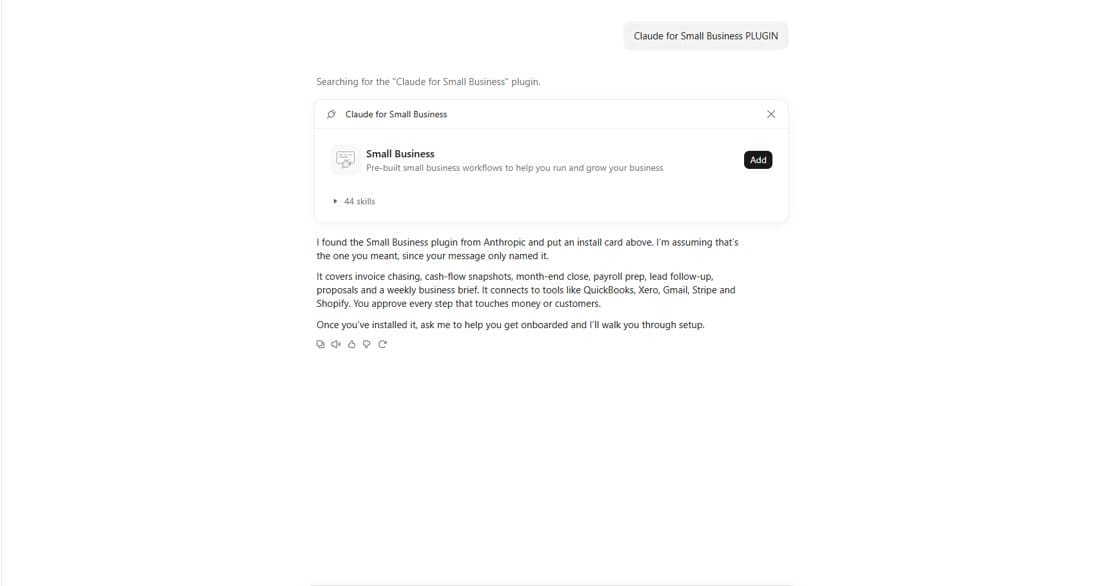
Open a new chat and type Claude for Small Business PLUGIN. Claude searches for it and shows an install card. Click Add.
Step 2: See what you have just added
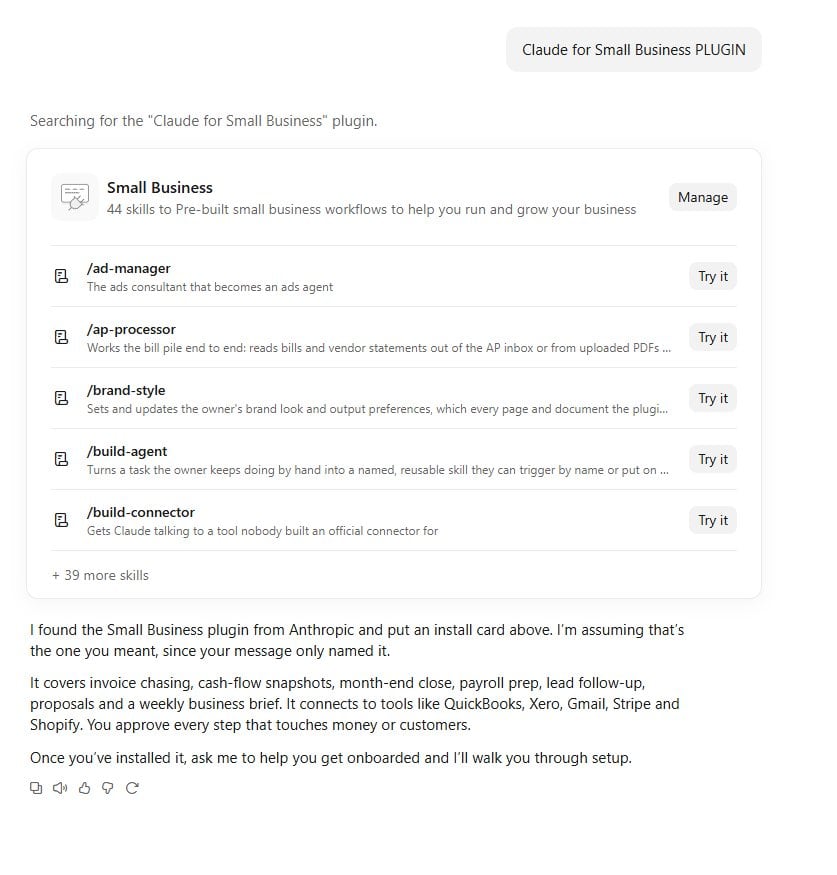
The card shows a list of ready-made skills for things like invoice chasing, cash flow, month-end, payroll, lead follow-up, proposals and a weekly business brief. My card said 44, although Anthropic’s own pages give different counts, so expect the number to vary. Each skill is a slash command such as /smb-router, but you do not need to learn them. Claude points you to the right one.
Step 3: Start at the front door
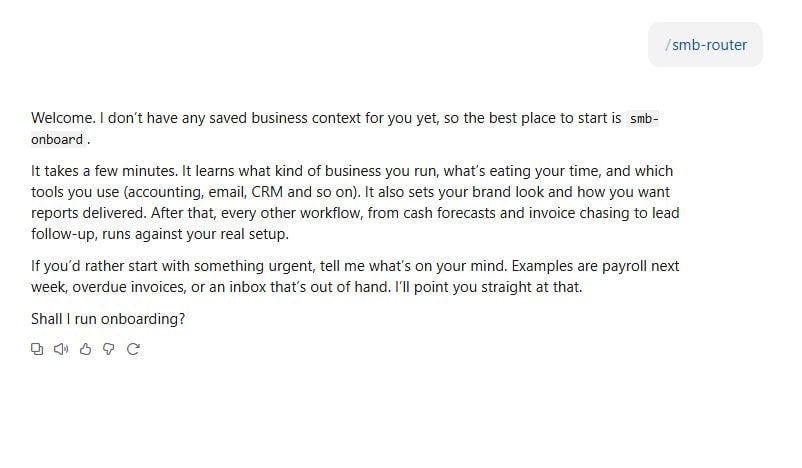
In the plugin card, find /smb-router and click Try it. It is the front door to the plugin. Claude had no saved information about my business yet, so it recommended onboarding first. I said yes.
Step 4: Let onboarding check what is connected
Onboarding looks at your setup first. It found only Descript, my video editor, so there was nothing business-related to read yet. That is fine. It then asked the question that decides what to connect first: what are your biggest day-to-day headaches? The choices were money, customers, scheduling or getting organised.
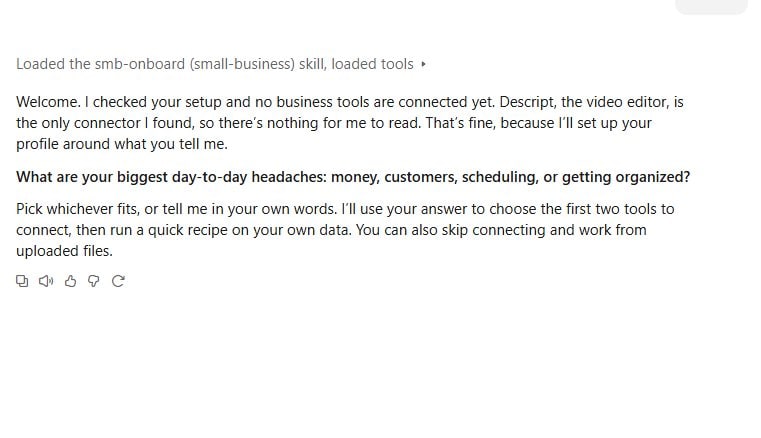
Step 5: Tell it your biggest headache
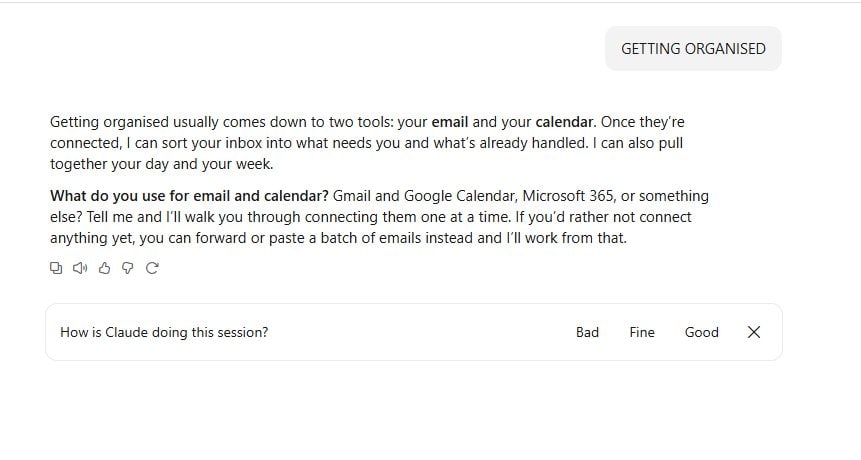
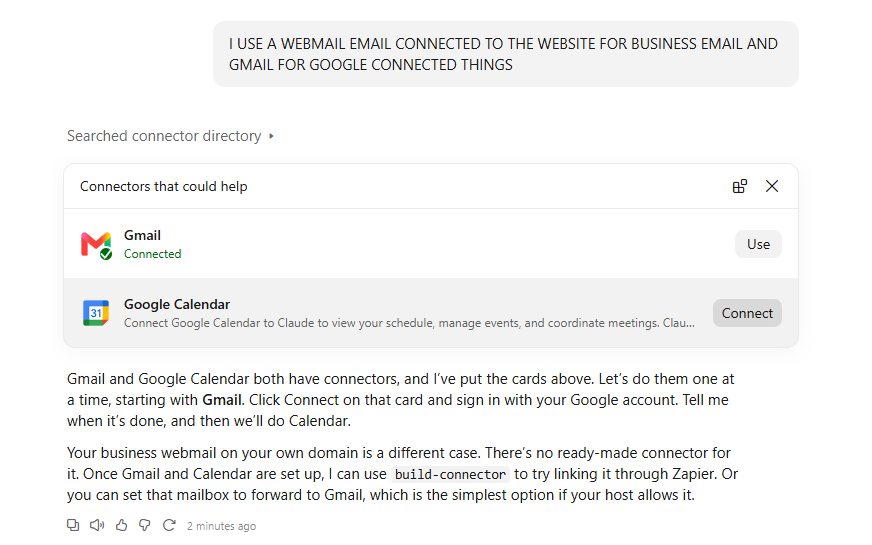
I answered Getting organised. Claude used that to choose the first two tools, email and calendar, and asked what I use for each. My business mailbox is on my own domain, and Claude told me there is no ready-made connector for that. It suggested forwarding it to Gmail, or linking it through Zapier later. I have not set that up.
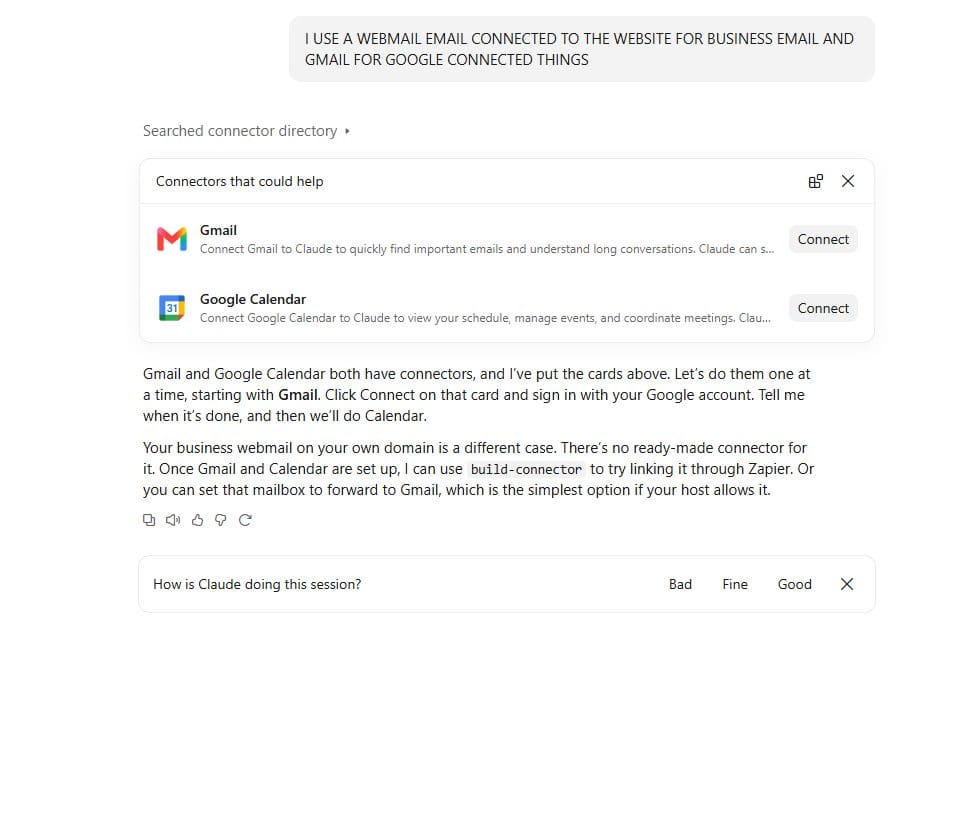
Step 6: Connect Gmail
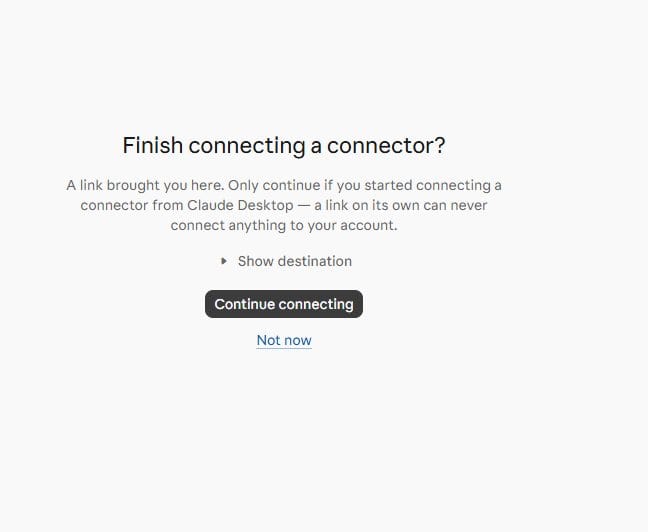
Click Connect on the Gmail card. A page asks whether you started the connection from Claude. You did, so click Continue connecting. Google then asks you to choose an account and shows what Claude wants to access.
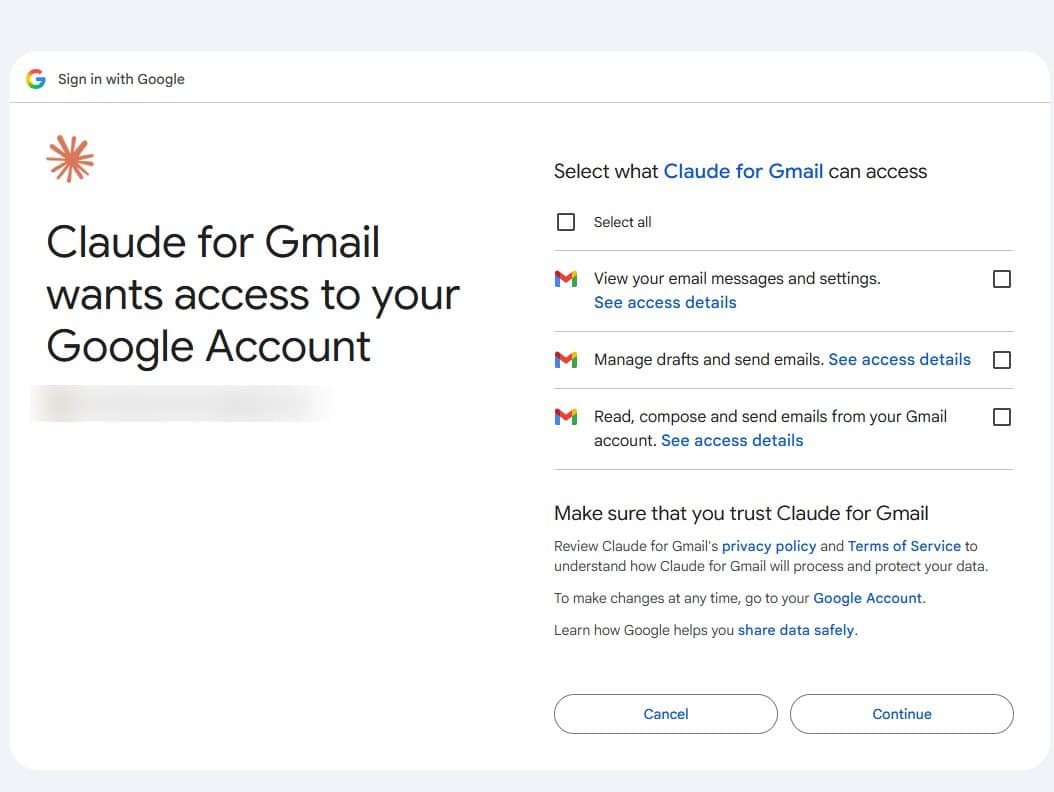
Watch for this: on the Gmail screen every box starts unticked. If you click Continue without ticking anything, Claude gets no access. Tick Select all, or choose only the lines you are happy with, before you continue.
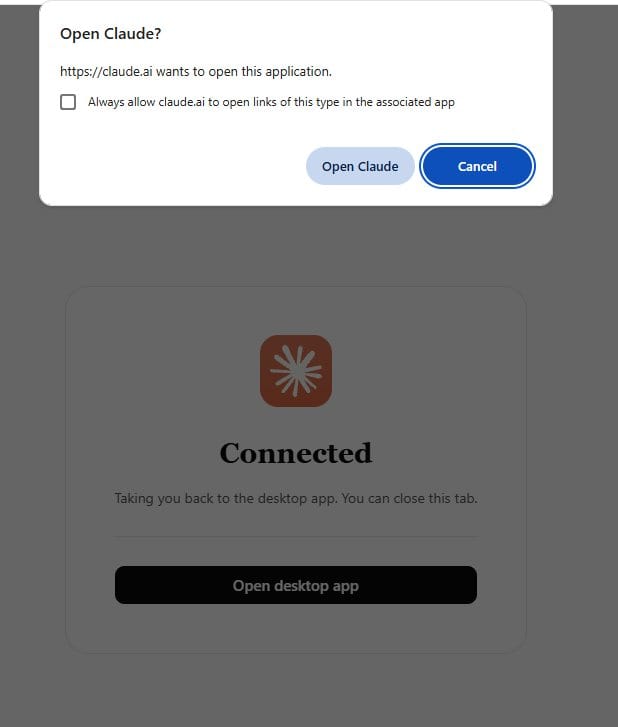
When it works you see a Connected page. Your browser may ask to open the Claude app, so choose Open Claude. Back in the chat, Gmail now shows a Connected tick.
Step 7: Connect Google Calendar the same way
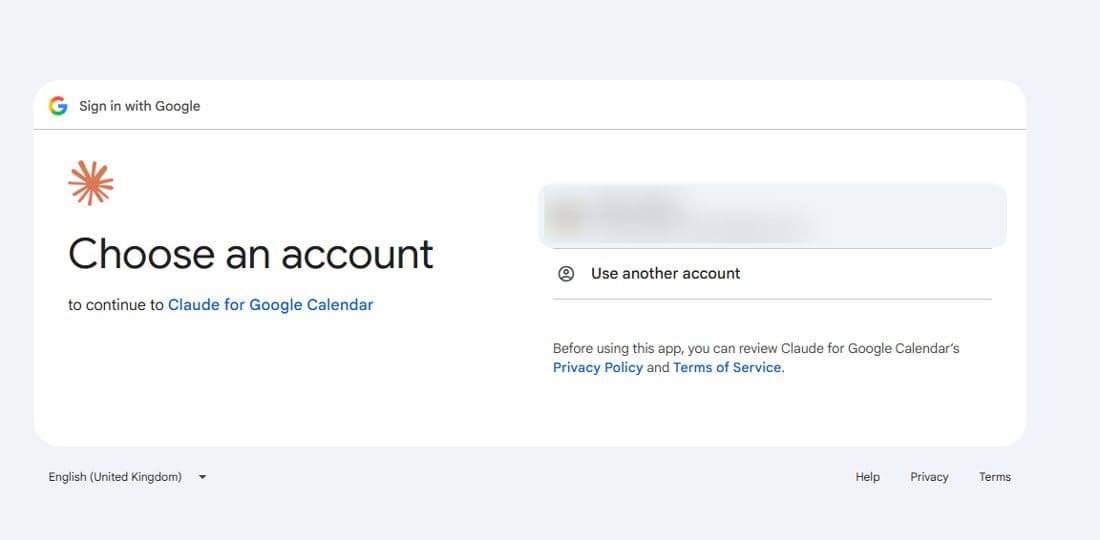
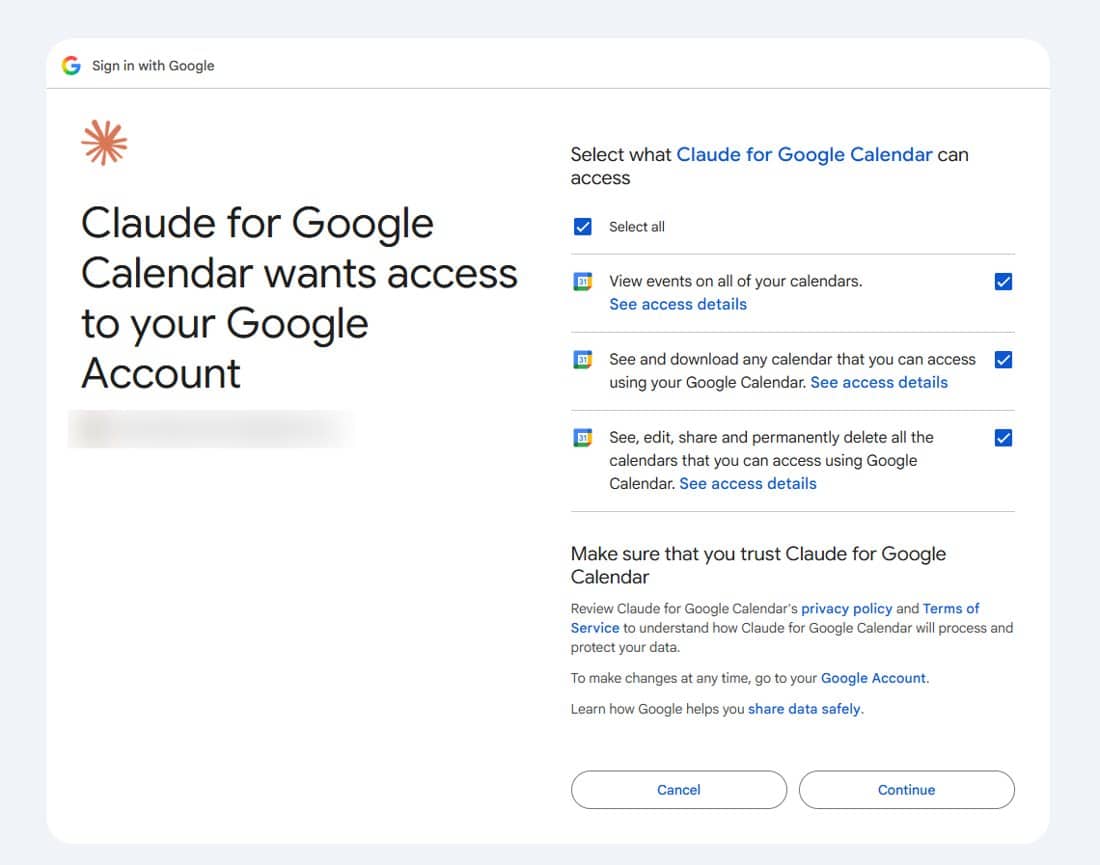
Connect, continue past the confirmation page, choose your account, then review the permissions. This time the boxes came pre-ticked, including permission to edit and permanently delete events. Untick that line if you only want Claude to read your diary.
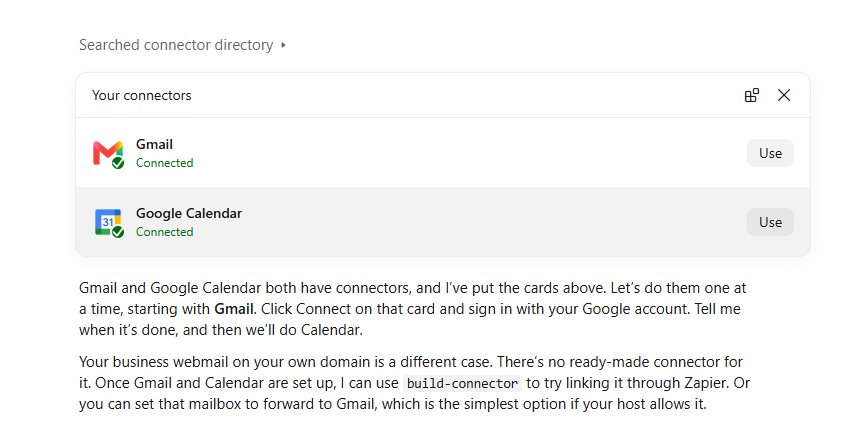
Step 8: Try it on your own data
I said Use Gmail for this. Claude read the last seven days, about 200 threads, and sorted the 25 newest into what needed me, what was worth a glance and what was already handled. Nothing needed a reply that day. It also noticed something sensitive in my own mail and told me about it without repeating it. It reads real mail, so be careful what you screenshot.

Step 9: Tell it about the business, then check the profile
Claude then asked, one question at a time, what the business does, which tools I use, where I am based, when my financial year ends and what I want from the next three months. I answered in plain words. It tried to read my website but could only read the words, not the colours or fonts, so it asked me to describe the brand. I said teal, and that Word documents work best for me. It used pounds and my 5 April year end.
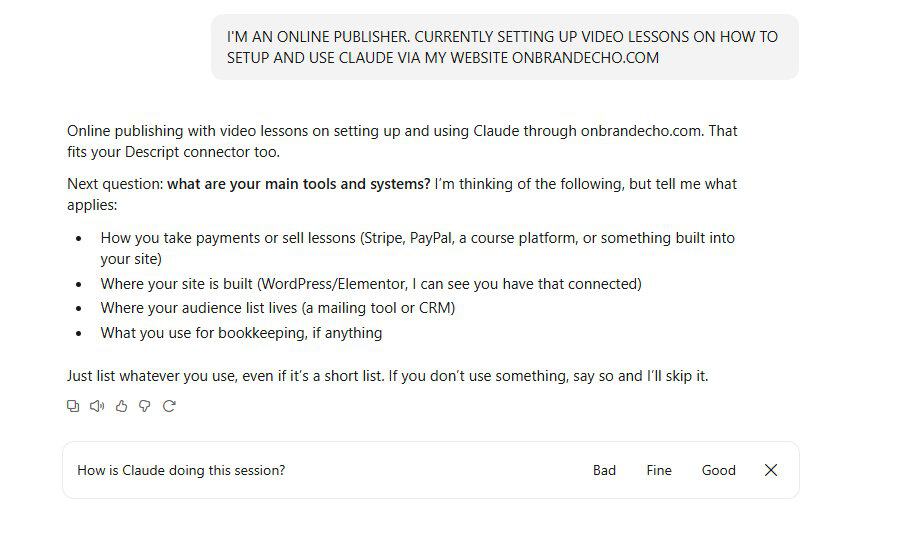
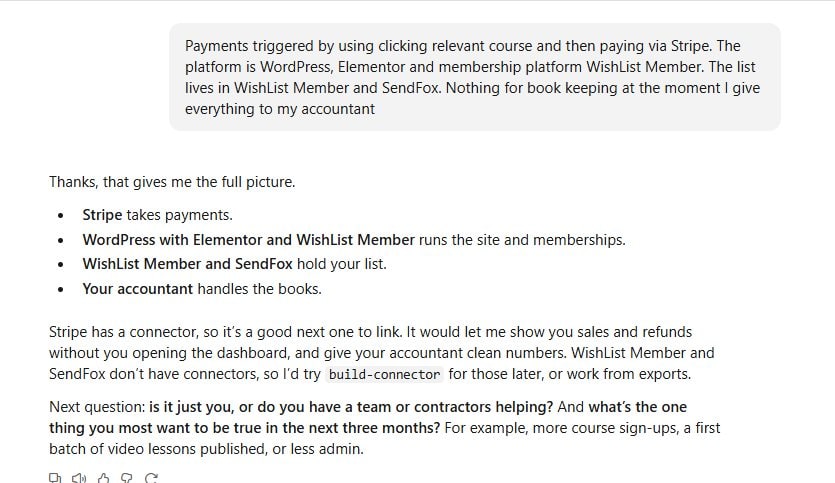
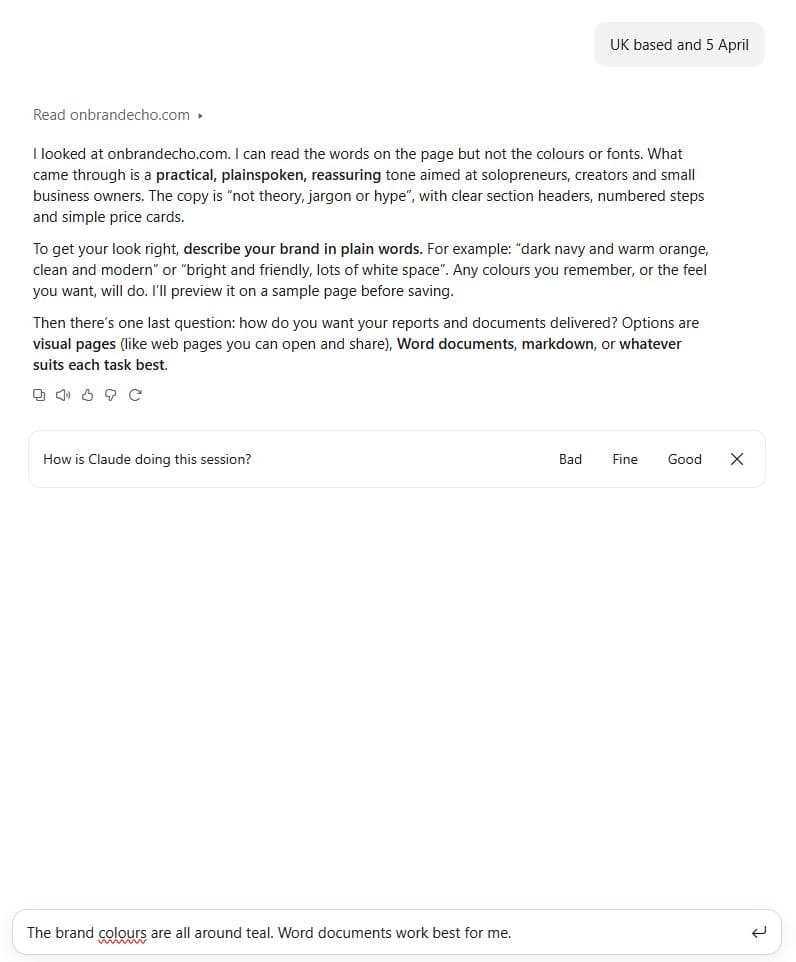
Before it saved anything, Claude showed me the whole profile to check. I corrected one line, because my website was already connected, and agreed Monday as my weekly check-in day. Read it properly and fix anything wrong before you say yes.
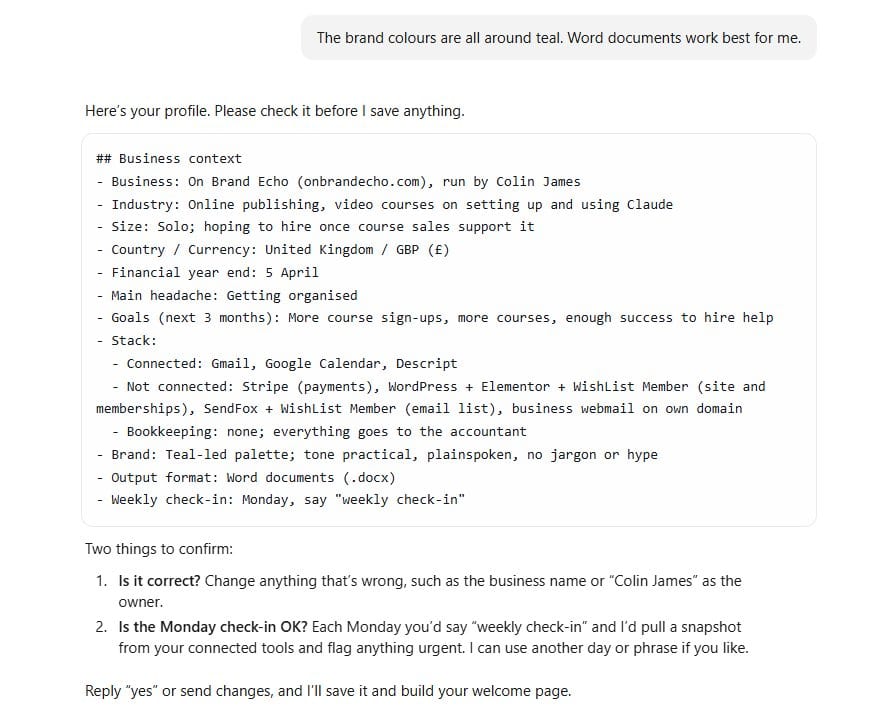
Step 10: Get your welcome page
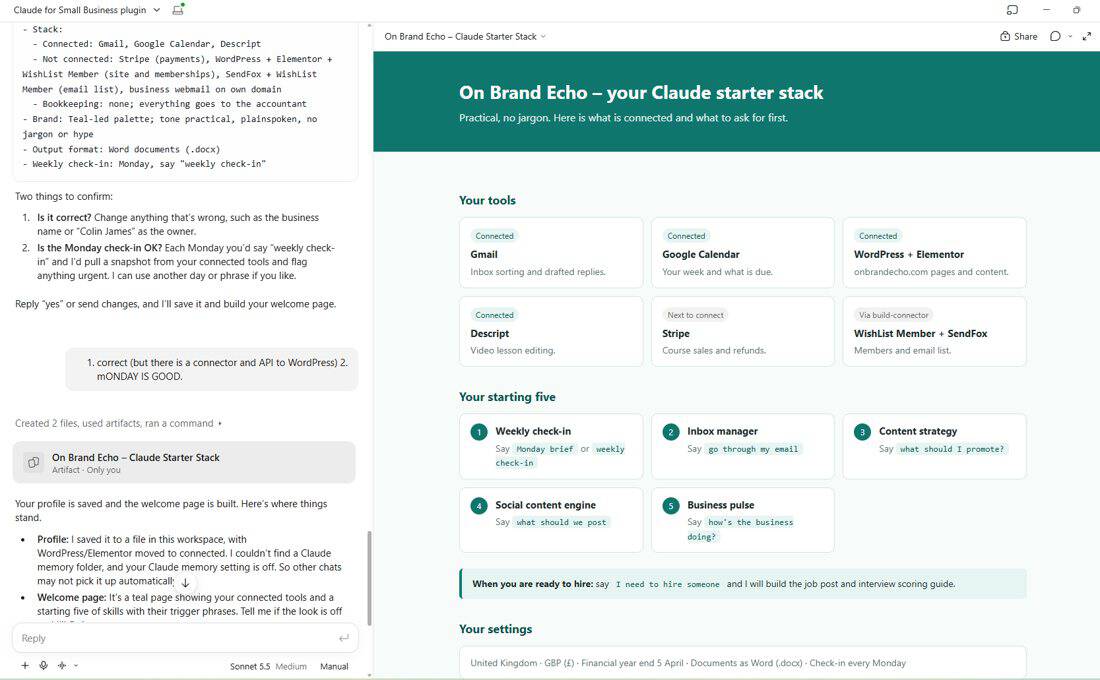
Once I confirmed, Claude saved the profile and built a welcome page in my brand colours. It lists what is connected, what to link next and five starting skills with the exact phrase to say for each. It suggested Stripe as the next connector. WishList Member and SendFox have no connector, so Claude said it would try another route for those later.
After setup: the ready-made workflows
Once the plugin knows your business, the workflows are where it earns its place. According to Anthropic’s own tutorial, three of them are a Monday morning brief, a month-end close and a payroll forecast. Each starts from a single command and reads whichever of your tools are connected. Anthropic says nothing is sent, posted or paid until you approve it, and that decisions on pricing, signing and what goes to your accountant stay with you.
I have not run those three workflows yet. They read tools such as QuickBooks, PayPal and HubSpot, and I do not use bookkeeping software because my accountant does my books, so I cannot tell you from experience what they produce. What I can tell you is what setup involved, which is what the steps above show. If I connect Stripe and run the Monday brief, I will write that up separately.
Things worth knowing
- Claude said it saved my profile to a file in its workspace. My Claude memory setting is off, so it warned that other chats may not pick the profile up automatically. Check your own setting.
- It asked before every step that mattered. Anthropic’s description says you approve every step that touches money or customers.
- Anthropic’s install guide says you need the Claude desktop app and a Pro, Max or Team plan. It does not say which countries the plugin is available in, so check before you assume.
- Anything involving accounts or payroll is not accounting advice. Check with your accountant before relying on any figure.
The short version
- Ask Claude for the “Claude for Small Business” plugin and click Add.
- Click Try it next to
/smb-routerand let it send you to onboarding. - Say what your biggest headache is.
- Connect your first tool: Connect, Continue connecting, choose your account, tick the permissions, Continue.
- Repeat for the second tool, then ask Claude to use it.
- Describe the business, check the profile, confirm.
- Open the welcome page and try the first skill on it.
If you are starting from scratch and want to know what to write in Claude’s own settings first, read Claude custom instructions: where to find them and what to write. If you want Cowork, Skills and Artifacts set up properly, Claude PowerPrint covers all three.
Plans and features change, so check Claude’s own pages rather than relying on this post.